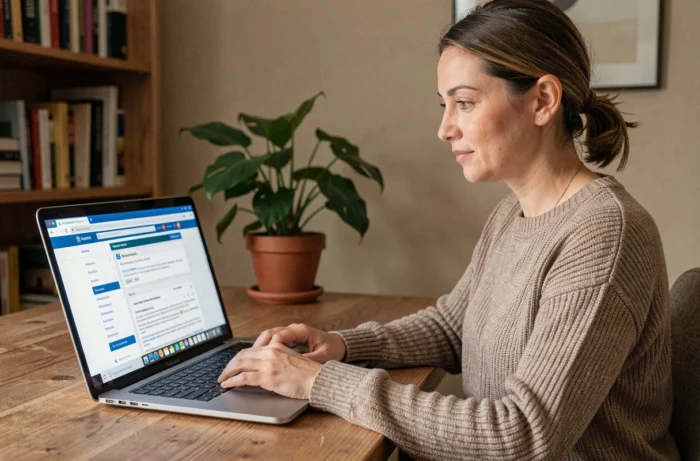
The Rouen education authority’s academic email service is based on webmail, accessible at webmail.ac-rouen.fr. This interface allows National Education staff to check their work messages from any connected device, without using their school’s internal network. Understanding how usernames and connection protocols work can prevent most of the issues encountered when accessing the service from home.
ac-rouen webmail login details: format and recovery
Your username is a personal login assigned by the regional education authority when you take up your post. It is different from your full email address and should not be confused with it.
Unless changes have been made to the account, the initial password provided by the regional education authority will remain valid.
The steps to follow if you forget your details depend on which one you need. Your username is listed on the documents provided when you were assigned to your post. If you have changed your password and then lost it, you will need to contact academic support. A detailed guide explains how to access the Rouen academic email service, including the password reset procedure.
Accessing Rouen webmail from a browser: technical requirements
On a personal computer, you can connect using a standard web browser. The login page is at webmail.ac-rouen.fr. An outdated browser may prevent the page from displaying without showing an explicit error message.
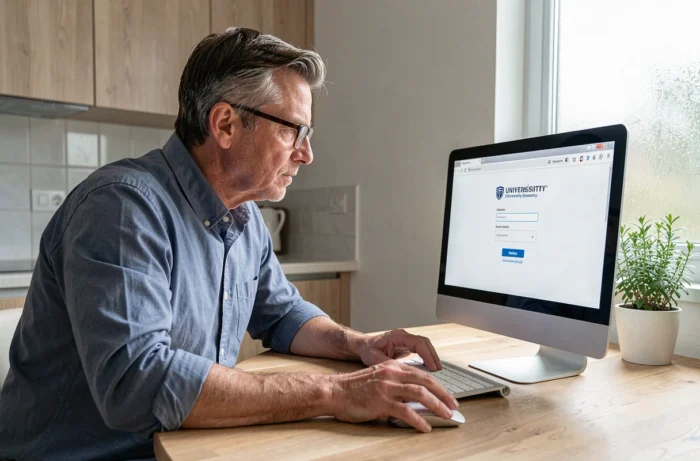
Keeping Firefox, Chrome or Edge up to date ensures compatibility with the security protocols used by the server. An outdated browser may display a certificate warning or a blank page.
Extensions that filter scripts or cookies can also cause access issues. The academic webmail service relies on session cookies to keep you signed in. If a cookie blocker interferes, the page may keep reloading indefinitely after you enter your login details. Temporarily disabling these extensions can help you check whether they are the cause.
Setting up academic email on a smartphone or tablet using IMAP
To access your messages on a mobile device without using a browser, you need to set up a mail client using the IMAP protocol. This protocol syncs messages between the server and your device, whereas POP3 downloads them and then deletes them from the server.
Manual setup requires several specific settings. Here are the ones listed in the academic documentation for an Android device:
- Account type: Personal IMAP
- Email address: [email protected] (the domain changed when the Rouen and Caen education authorities merged to form the Normandy education authority)
- Incoming server username: your short academic username, not your full email address
- Incoming IMAP and outgoing SMTP servers: the addresses provided by the education authority during initial setup
- Security type: SSL/TLS for the incoming server
A common mistake is to enter your full email address as the incoming server username. You need to use your short academic username. This mix-up causes an authentication failure that is often mistakenly interpreted as an incorrect password.
Academic email and ENT: two separate services
The L’Éduc de Normandie ENT and academic webmail operate independently. The ENT brings together educational services (classwork, grades and communication with families) and has its own authentication system. Your work email account is accessed through academic webmail, using the login details described above.
Looking for your work email inbox in the ENT will get you nowhere: the two services are separate. The ENT may include an internal school messaging service, but this does not replace the @ac-normandie.fr address used to communicate with the regional education authority, inspectors and administrative departments.
Keeping your connection secure on a home network
Accessing your work email over a personal Wi-Fi network raises privacy concerns. Messages are sent over an encrypted connection (HTTPS), which protects their contents in transit. The greater risk comes from the device you use.
On a computer shared with other members of your household, the browser may save your login details in its password manager. Using private browsing for each session prevents this automatic saving and deletes cookies when you close the window.
On a smartphone or tablet, a mail client set up with IMAP stays connected at all times. Locking the device with a passcode or biometric authentication is a basic safeguard for academic messages stored locally.
The switch from the old @ac-rouen.fr address to the @ac-normandie.fr domain may still cause issues with saved settings. If access stops working for no apparent reason, it’s worth checking the domain entered in your mail client settings.